
What is DHCP and how can we configure it to help our network? DHCP stands for Dynamic Host Configuration Protocol, which is a protocol that automatically assigns network addresses, subnet masks, default gateways, and DNS servers to devices. Automatic assignment reduces the manual workload otherwise required by network administrators. This lab starts by taking you through the configuration of one DHCP router that conjoins two networks. We’ll then introduce another router into the equation and showcase DHCP Agent Relay.
Single Router Configuration
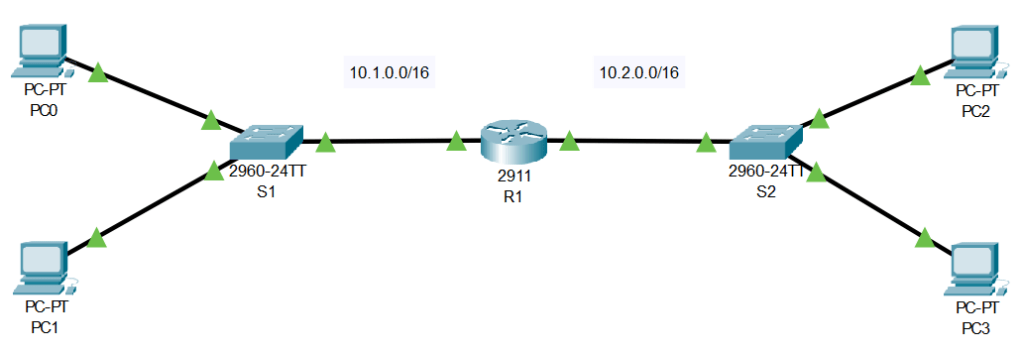
With the above topology, R1 is acting as a DHCP server and the PCs are the DHCP clients. In enterprise environments (including our next topology) a dedicated server would typically be used instead of a router. As mentioned, a DHCP server hands out several pieces of information. So let’s begin by configuring the DHCP pools, networks, gateways, and DNS server. In this scenario, we have two networks, which means that we need two DHCP pools, one for 10.1.x.x and one for 10.2.x.x.

Great! Now the router can pass along this information to devices. But how do the devices get this information? This is done through a process referred to as DORA.
- Discover
- Offer
- Request
- Acknowledge
Discover – This is the first step in the DHCP process. Devices that are set for automatic IP assignment send out “discover messages” which are both layer 2 and layer 3 broadcast messages (SRC IP 0.0.0.0, DST IP 255.255.255.255, SRC MAC – DHCP clients MAC address, DST MAC FF:FF:FF:FF:FF:FF). The DHCP server receives this message and initiates part two of DORA – Offer. It sends a packet back that contains an IP address from the pool we configured. Once the device determines the IP is suitable, it then requests to use the IP from the DHCP server. To complete the last step, the DHCP server sends an acknowledge packet to inform the client it received its request.
This works great for small networks that connects to one router, such as something you use every day… your home router! But what happens when we start adding additional networks and routers? Well, if we want to use the same DHCP server across our entire network then we need to add functionality on the routers that will forward DHCP broadcasts. Let’s showcase this with a more advanced topology.
DHCP Agent Relay

As you can see, the DHCP server is no longer configured on a router, instead, it’s a dedicated server. Additionally, none of the devices have a direct connection to the DHCP server. As it stands, when discover messages are sent from DHCP clients, they will be dropped by the routers. Our job is to configure the routers to pass along these broadcasts, instead of dropping them. Let’s take a look at R1 first. We need to configure the interface connecting network 10.2.0.0. In this interface we can use “ip helper-address 10.4.0.2″(where 10.4.0.2 is the DHCP server)… that’s it! One simple command and R1 is now passing DHCP messages.
Things get more complicated with PC3 and PC4. The DHCP configuration is still straightforward, we can use the exact same command of “ip helper-address 10.4.0.2”. But now we need to consider how the packet gets there and back. If you haven’t read my “Static Routes” blog then I recommend reading that for an overview of static routing. With this topology, we need to configure 2 routes (one on each router). R2 needs a route for 10.4.0.0 and R1 needs a route for 10.3.0.0. Below is the routing table of each router after they’ve been configured.

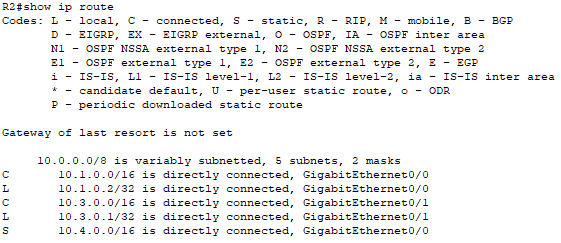
And just like that… everything’s configured! DHCP messages are now being passed along to the DHCP server, and your network admin no longer has to worry about statically assigning everything.
 Networking With Carson
Leave a comment